
How to Use Passwordless Shopify Customer Accounts in Webflow with Shopyflow
Shopyflow supports Shopify's new Customer Account API, offering a secure and streamlined login experience without the need for passwords.
Customer accounts is the newest version of customer accounts, and lets your customers sign in using a one-time 6-digit verification code sent by email. A password isn't required to sign in.
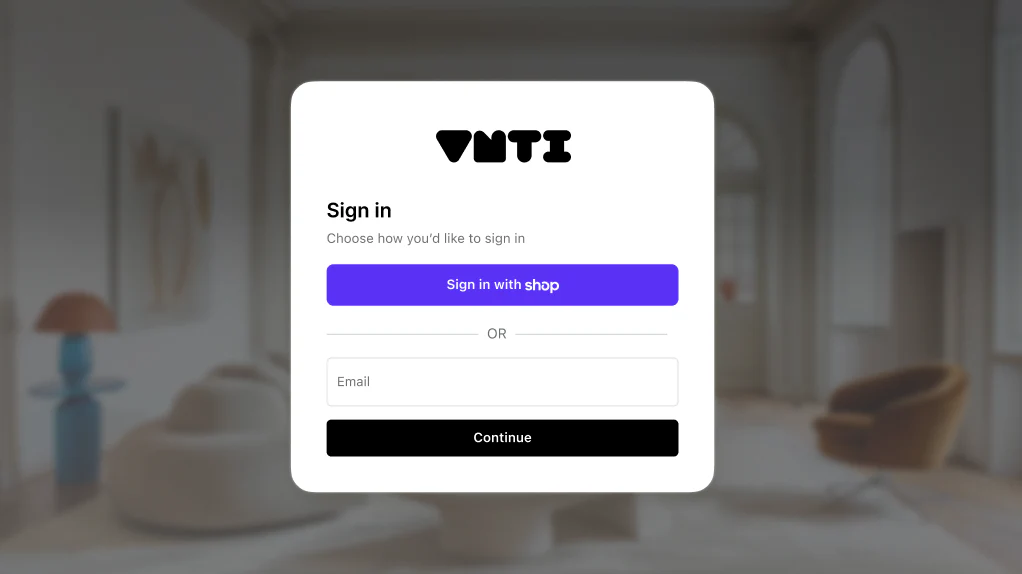
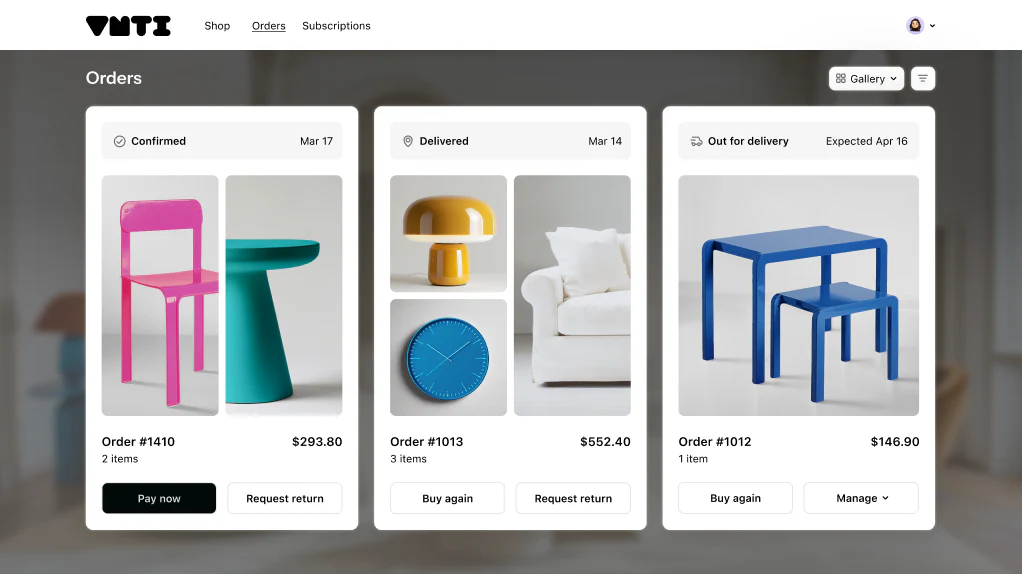
Your customers can view their orders, update their payment methods and manage their subscriptions in the new Shopify customer portal. If you prefer, you can also build the customer portal in Webflow using Shopyflow's account components (with some missing features like payment and subscription management).
In this guide you are going to understand:
- How to enable new Customer Accounts in Shopify
- How to configure your Webflow site to work with Shopify's passwordless login
① Verify customer accounts version in Shopify
- Log in to your Shopify Admin
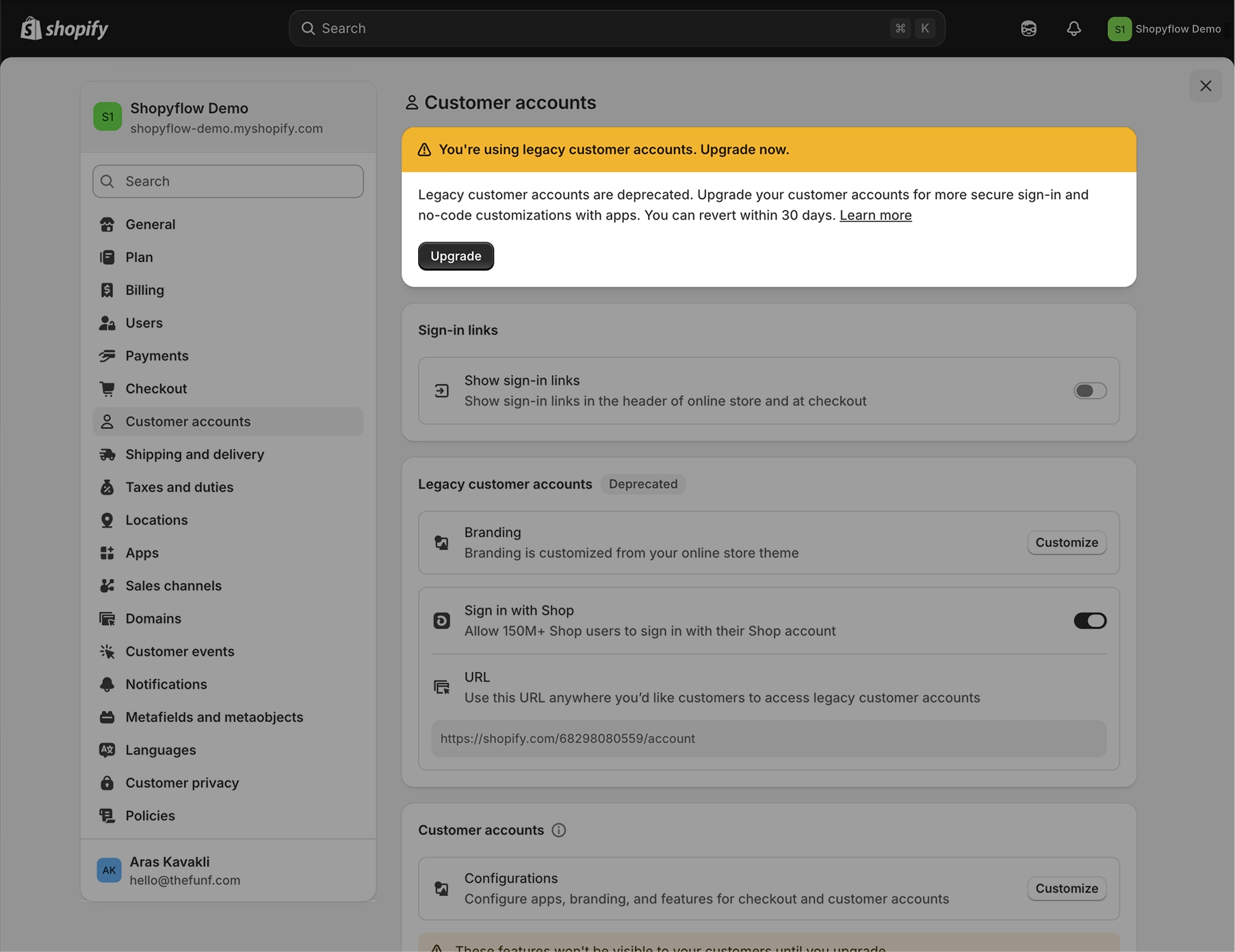
- Go to Settings > Customer accounts
- Make sure you are not on the legacy customer accounts. If you are still on the legacy version, click upgrade. If you do not see the option to upgrade as shown in the image below, you are already using the new customer accounts.
② Customer portal configuration
Next, you need to choose where to host your customer portal. You can use Shopify's own customer portal (Option A) or use Shopyflow's account pages (Option B) as your customer portal.
Option A: Customer portal in Shopify (recommended)
In this setup, all customer-related pages (login, account details, order details) are hosted in Shopify with limited customization. Your customer will be able to view orders, update addresses and payment methods and manage their subscriptions in the portal.
Headless App Config
- If you haven't installed the Shopify Headless App, install it. This is the same app that you will install before going live with your site as explained in #2 of the launch checklist.
- Open the headless app and create a storefront if you haven't created one already. If you already have an existing storefront click on it. Make sure your storefront has a meaningful name like Shopyflow Headless.
- Inside your storefront, go to Manage API access > Customer Account API by clicking the Manage button.
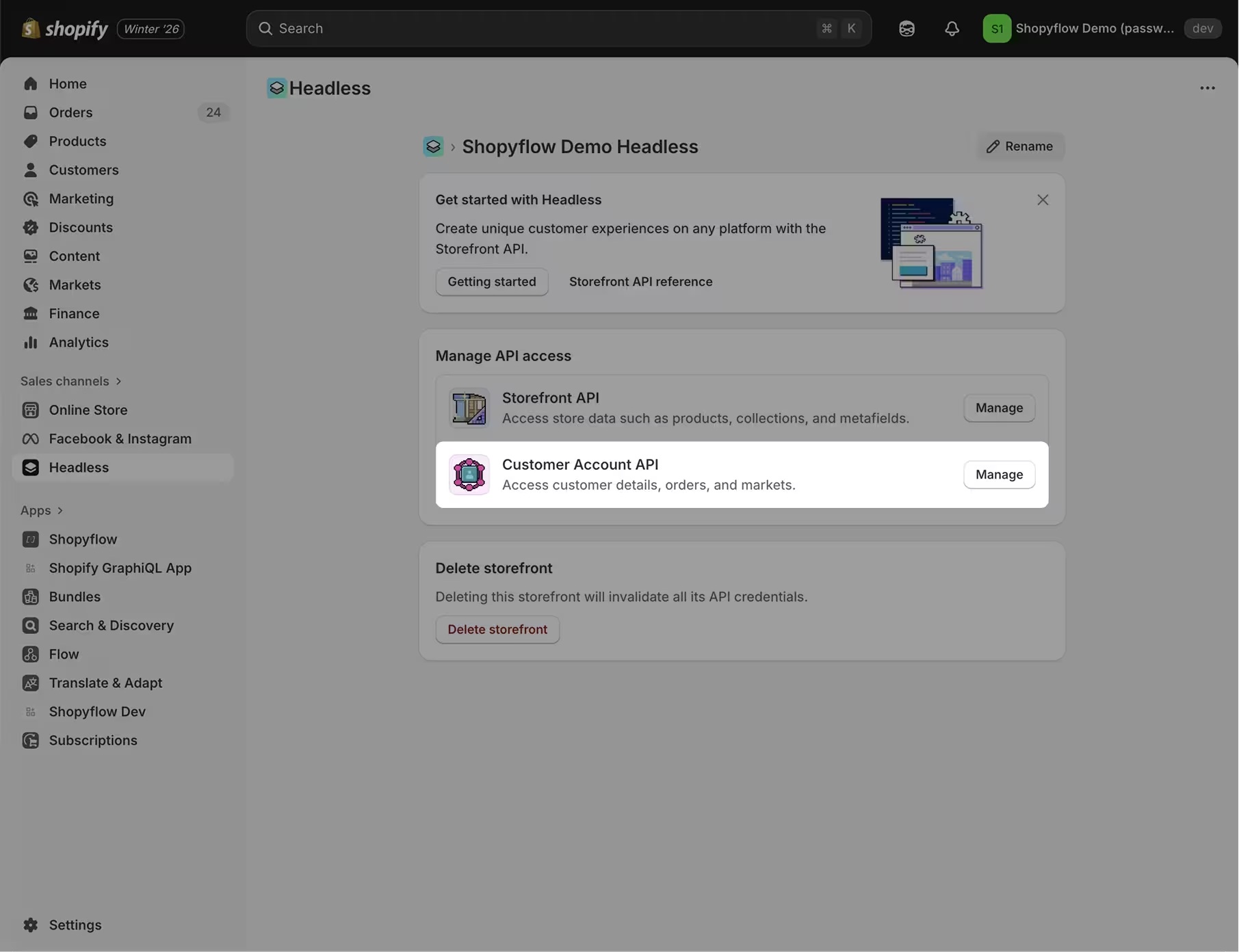
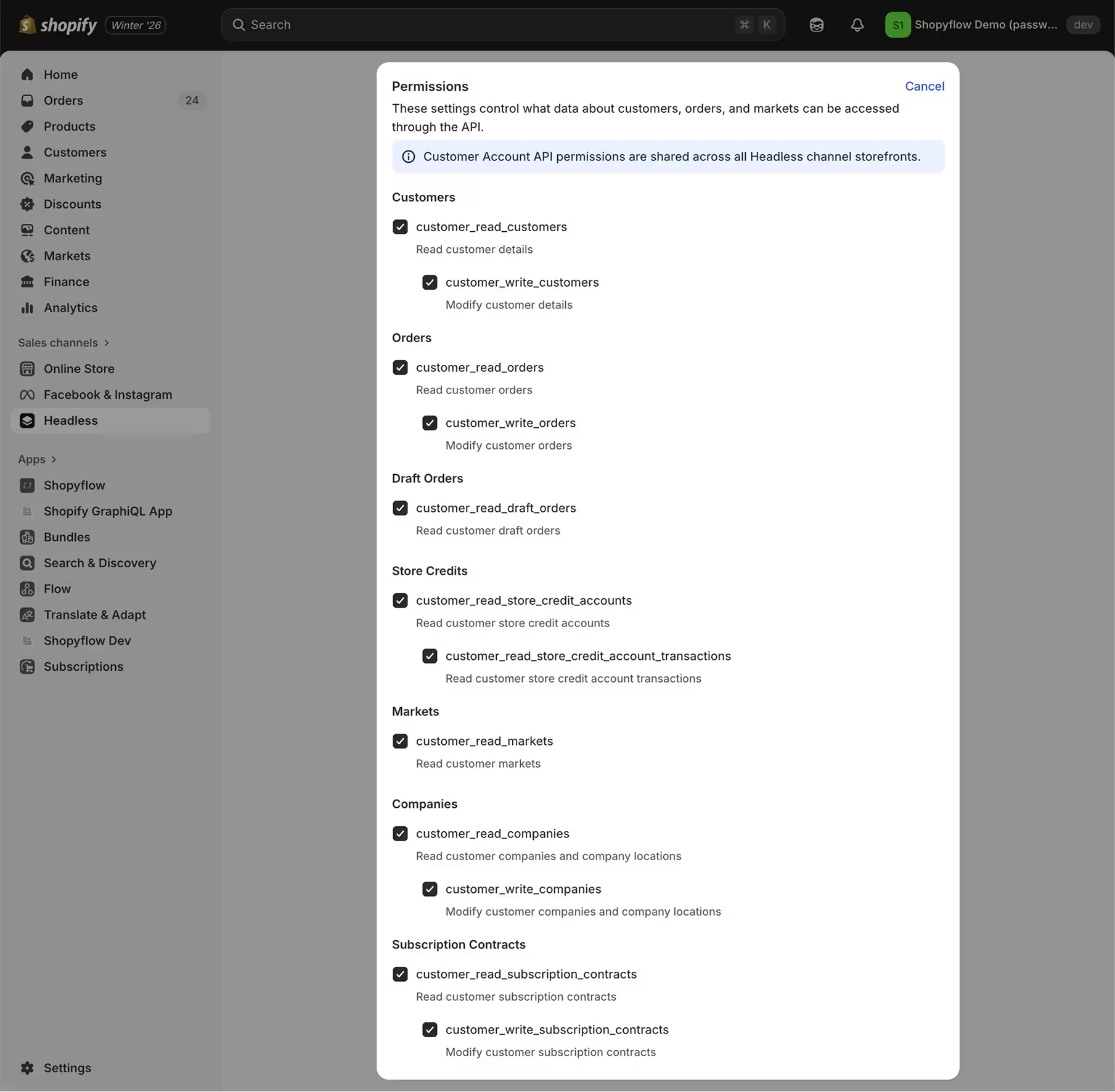
- Find the Permissions section and click on the pen icon.
- Check all the boxes and click Save at the top of the page.
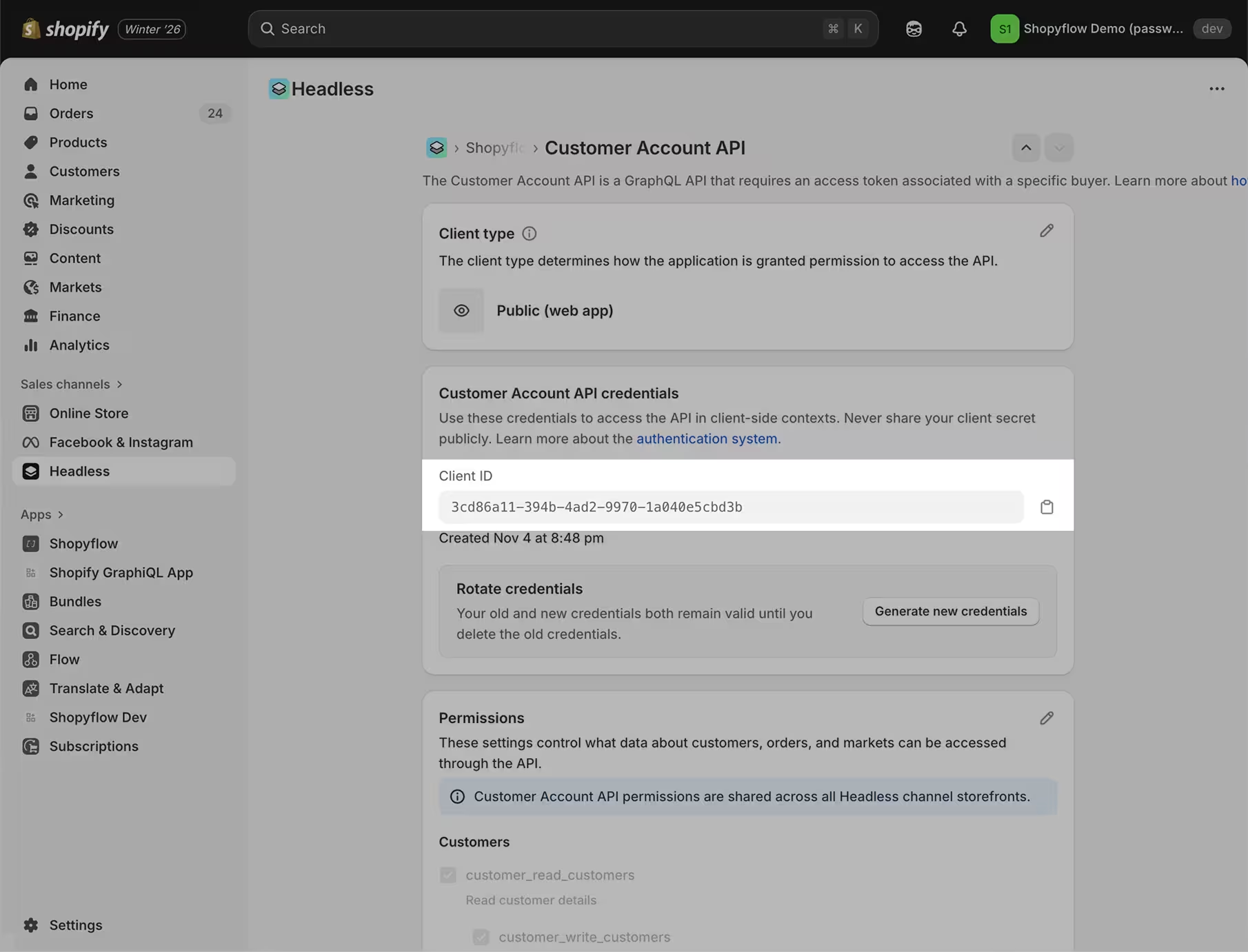
- Scroll to the top and find Customer Account API credentials section and copy the Client ID.
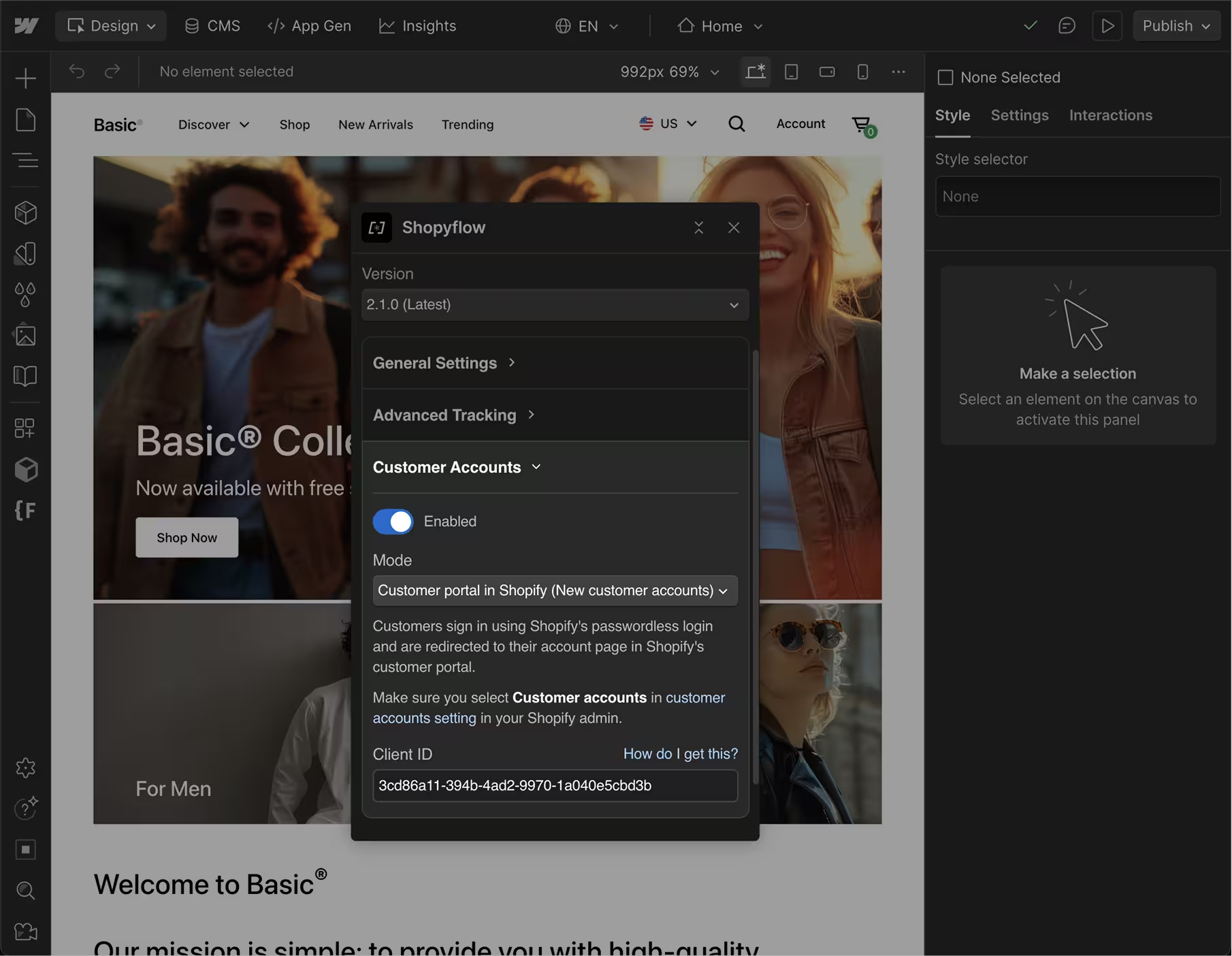
- Go to Shopyflow Webflow App > Installation > Customer Accounts and enable it.
- Select the "Customer portal in Shopify" from the dropdown.
- Enter the Client ID you just copied.
- Save & publish your site.
Webflow Config
- Go to Shopyflow Webflow App > Store Builder
- Add a Shopify Customer Portal component to your navbar. This will send your users to the customer portal in Shopify.
- You can change the icon of the component or convert it to a text link block. However make sure not to delete its custom attribute.
Customer Account Pages
You are using Shopify's customer portal therefore you don't need to create any account pages in Webflow.
Shopify Theme to Webflow Redirect
In Shopify's customer portal, the "Shop" link in the navbar takes your customers back to your Shopify theme. To prevent that and to send your customers to Webflow instead, you need to use Shopyflow's redirect script. Please see #5 of the launch checklist to learn how you can set it up.
Option B: Customer portal in Webflow
In this setup, your passwordless login page is hosted in Shopify, while account and order detail pages are hosted in Webflow and fully customizable. Your customer will be able to view orders and update addresses in Webflow. Subscription management will be handled through subscription app portals.
Headless App Config
- If you haven't installed the Shopify Headless App, install it. This is the same app that you will install before going live with your site as explained in #2 of the launch checklist.
- Open the headless app and create a storefront if you haven't created one already. If you already have an existing storefront click on it. Make sure your storefront has a meaningful name like Shopyflow Headless.
- Inside your storefront, go to Manage API access > Customer Account API by clicking the Manage button.
- Find the Permissions section and click on the pen icon.
- Check all the boxes and click Save at the top of the page.
- Scroll to the top and find Customer Account API credentials section and copy the Client ID.
- In Webflow create an account page to be styled later.
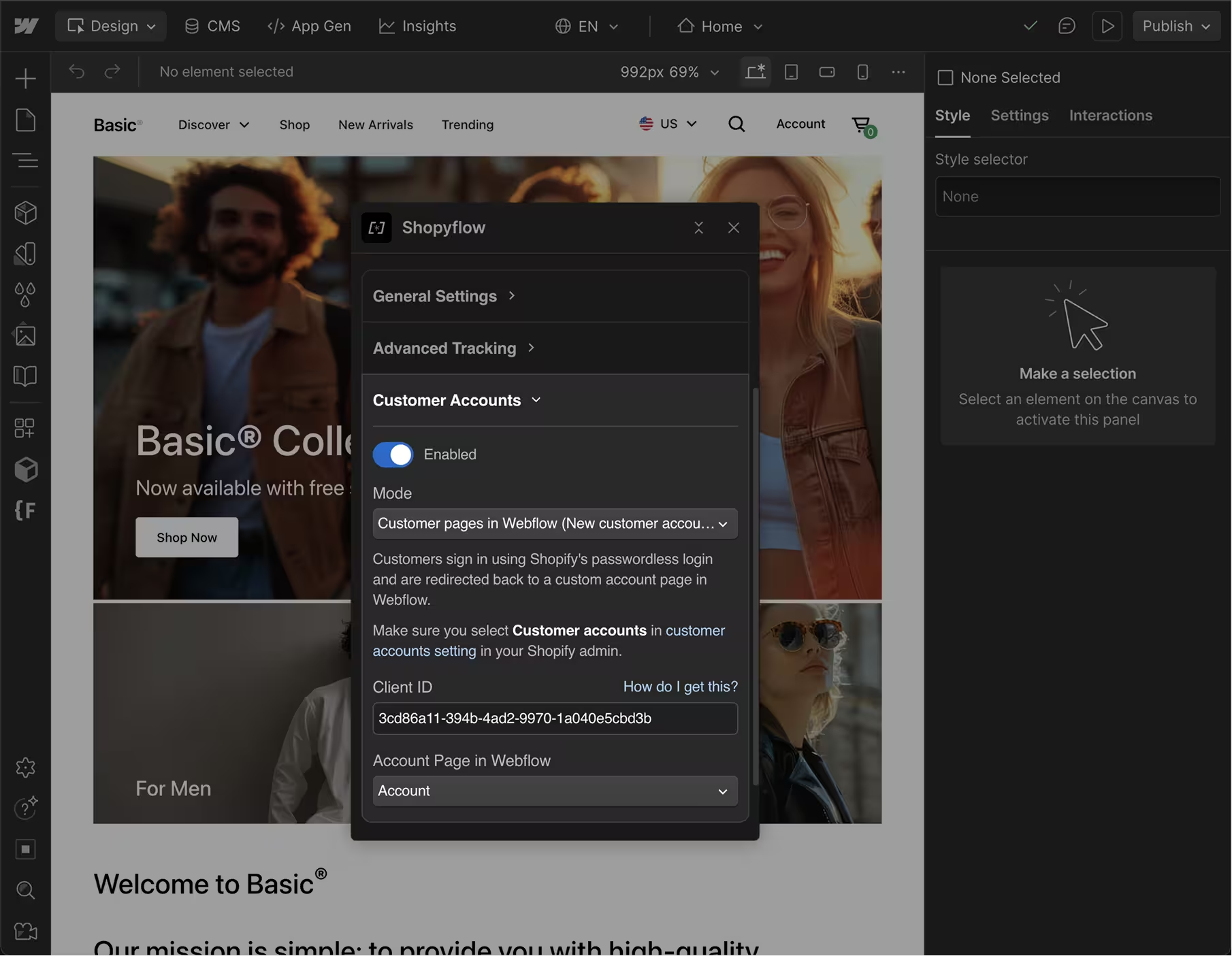
- Go to Shopyflow Webflow App > Installation > Customer Accounts and enable it.
- Enter the Client ID you just copied.
- Select "Customer pages in Webflow" from the dropdown.
- Select the newly created account page from the dropdown.
- Go back to the Headless app and scroll down to the Application setup section and click the pen icon to go into edit mode.
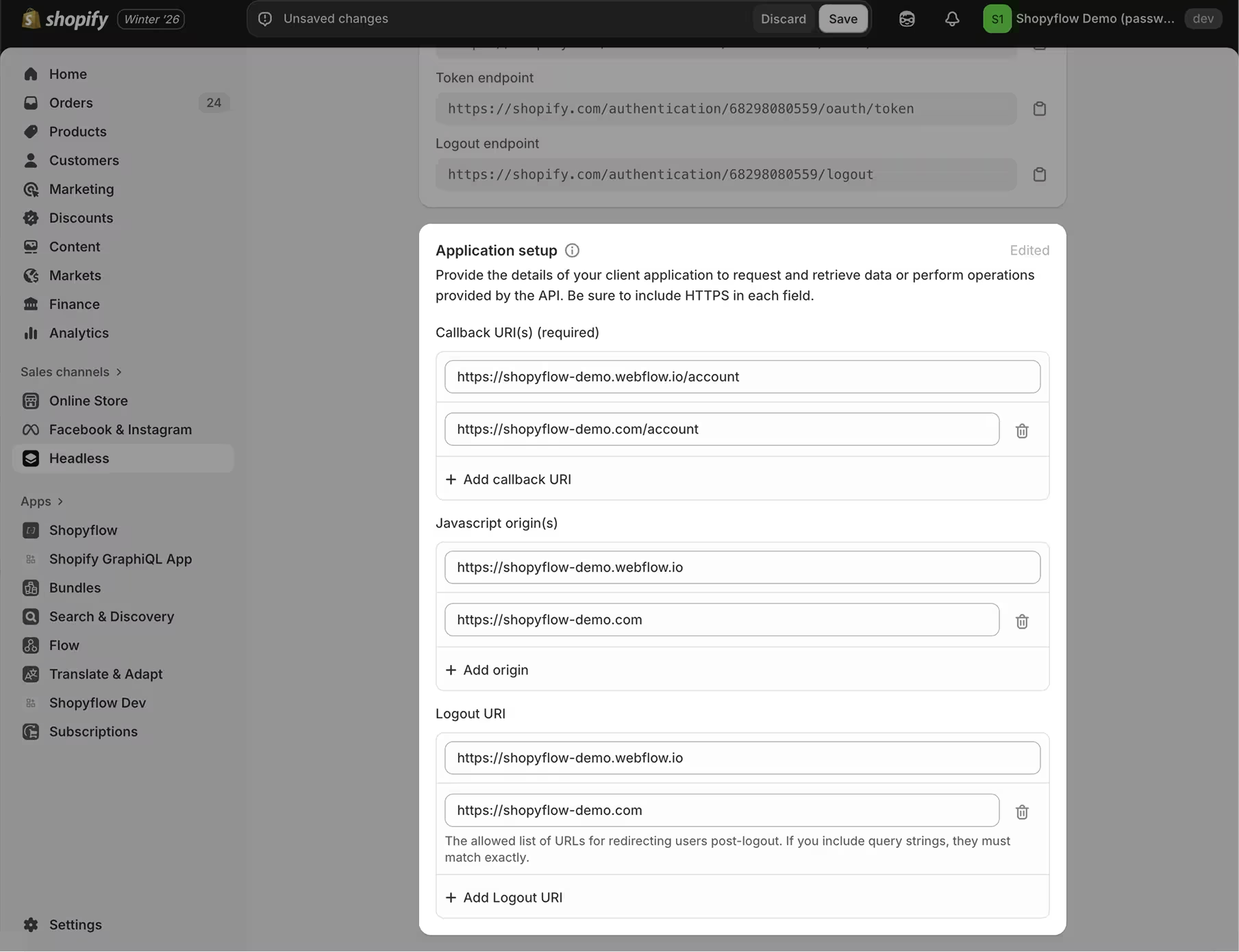
- Add your callback, JS origin and logout URIs. Make sure to enter both your custom and webflow.io URIs so that your customer account setup works on both domains.
Example URIs:
- Callback URIs should point to your account page:
- https://shopyflow-demo.com/account
- https://shopyflow-demo.webflow.io/account
- Javascript origins should point to your home page:
- https://shopyflow-demo.com
- https://shopyflow-demo.webflow.io
- Logout URIs should point to your home page:
- https://shopyflow-demo.com
- https://shopyflow-demo.webflow.io
- Callback URIs should point to your account page:
- Save & publish your site.
Webflow Config
- Go to Shopyflow Webflow App > Store Builder and add a User Menu component to your navbar. This login link will send your users to the customer login page hosted by Shopify. After login, customer will be redirected back to the account page in Webflow.
- Connect the My Orders link inside your user menu to your account page.
Customer Account Pages
- Go to Shopyflow Webflow App > Store Builder and add these components to your account page:
- Order History
- Address List
- New Address Form
- Update Address Form
- Create a new page to display order details.
- Navigate to the newly created order detail page. Go to Shopyflow Webflow App > Store Builder and add an Order Detail component.
- Go back to your account page and connect the Order No element's link to your newly created order detail page.
- Publish your site.
③ Use custom domain for your Shopify customer portal
Before starting, make sure your primary Shopify domain is a custom domain. You cannot use a custom domain for your customer portal if your store is still using a myshopify domain.
- Go to your domain host (e.g. GoDaddy, Namecheap, etc.) and open up your main domain's (e.g. mywebsite.com) DNS settings.
- Create a CNAME record as follows:
- name = The subdomain for your customer account pages (e.g. account)
- value = shops.myshopify.com
- Go to Shopify Admin > Settings > Customer accounts
- Click Change domain
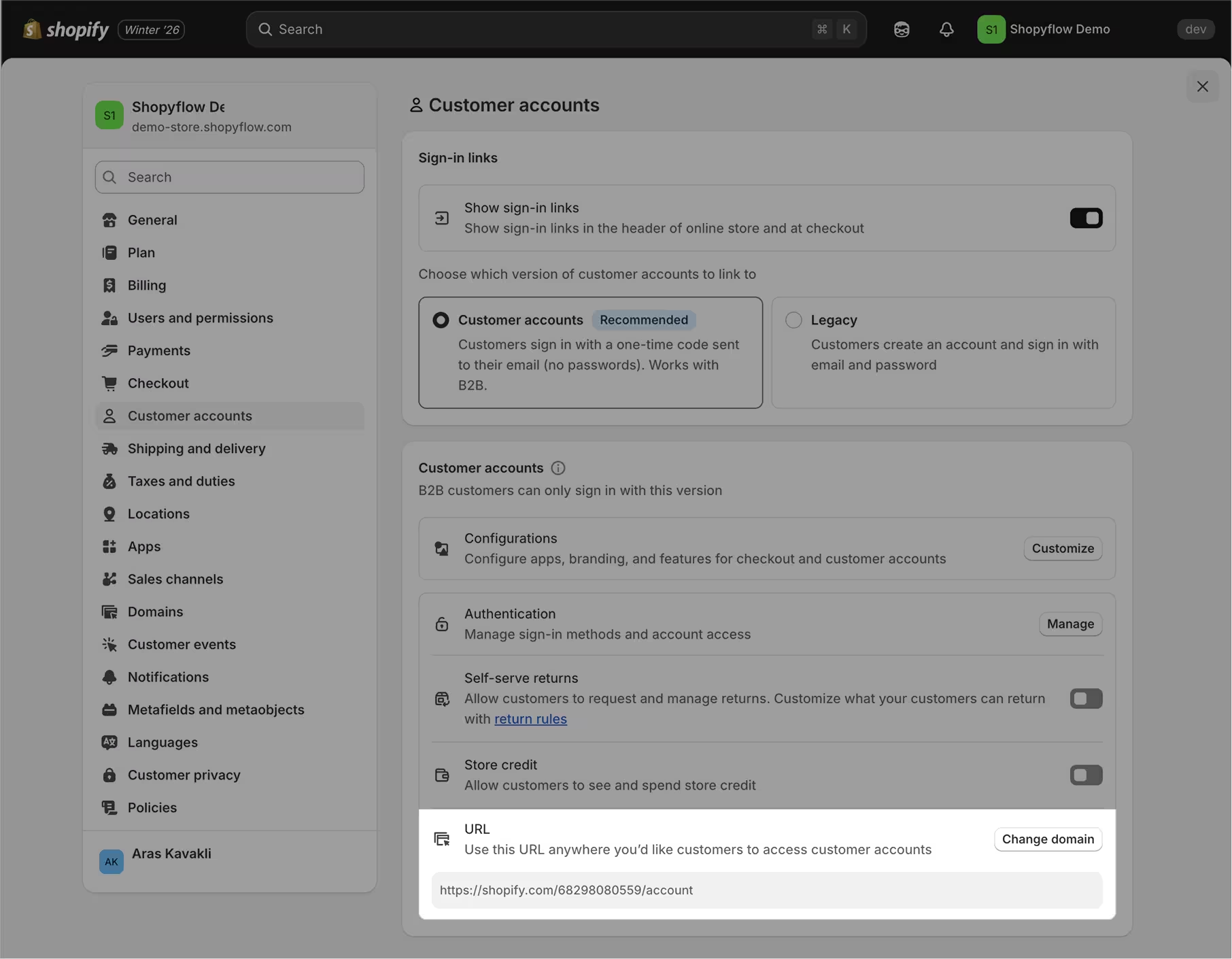
- Enter the subdomain you just created for your customer accounts (e.g. account) and click continue.
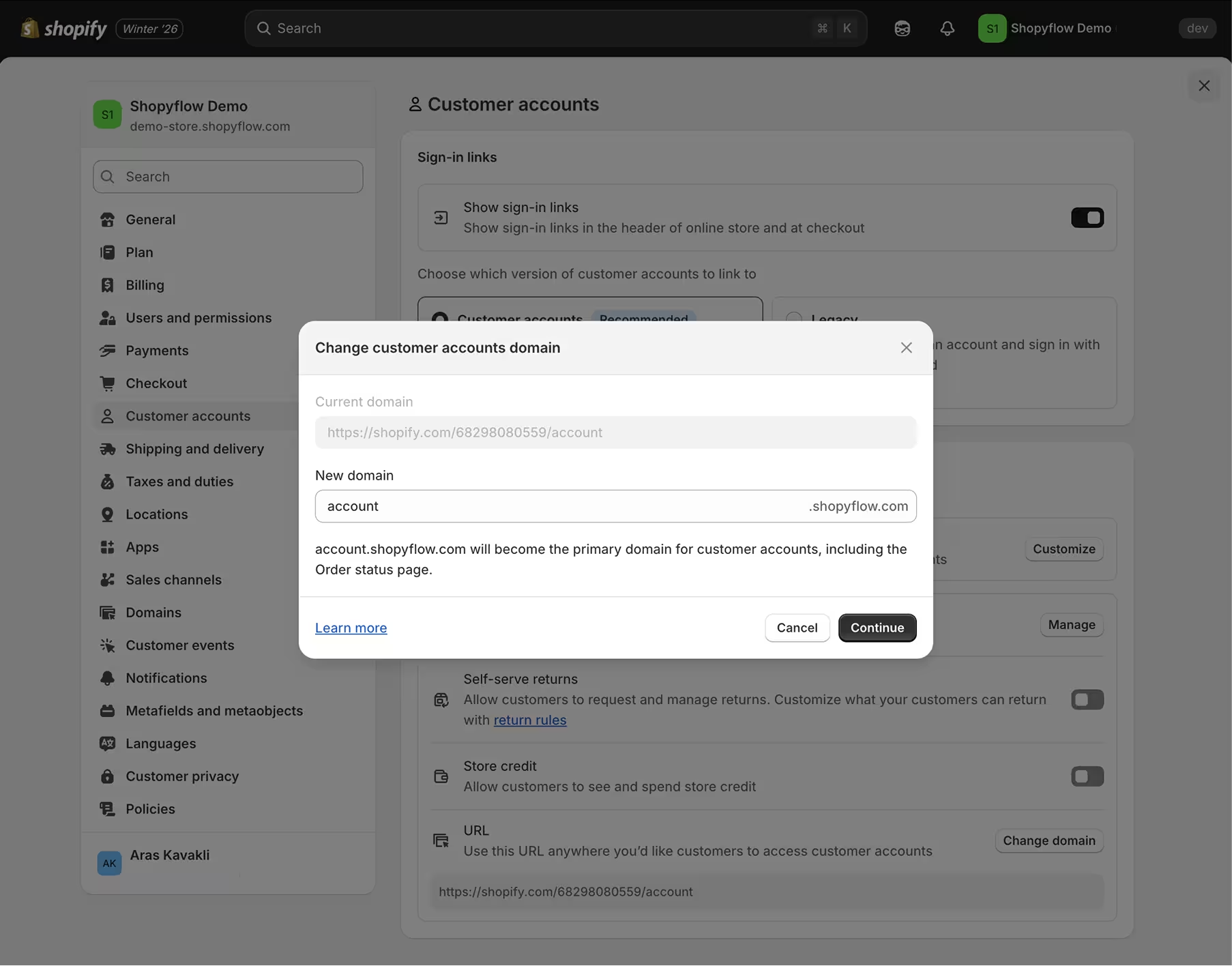
- After Shopify finishes provisioning the TLS certificate, you can start using the custom domain for your account pages. No further action is required in Shopyflow, the new accounts domain will be detected automatically.
④ Hide/Show content based on logged-in state and customer tags
You can use the attributes below to hide elements from logged out users or to show elements only to customers with certain tags in Shopify.
<!-- Visible to any logged-in user -->
<div sf-auth="1">Welcome back!</div>

<!-- Visible only to users with "vip" or "premium" tags -->
<div sf-auth="vip,premium">Exclusive VIP content</div>

<!-- Visible only to logged-out users -->
<div sf-unauth="1">Please log in</div>